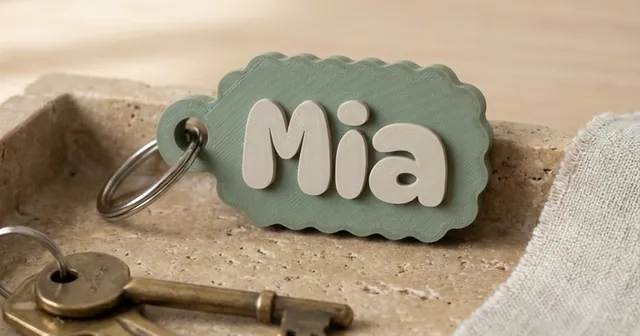
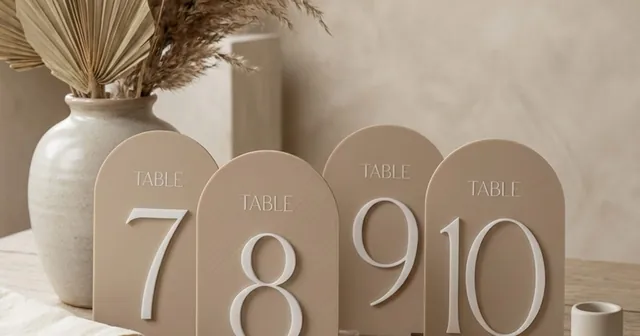
How to customise a 3D model for printing, with or without CAD.
Slicer tweaks, mesh editing, CAD, parametric files and generators, compared.
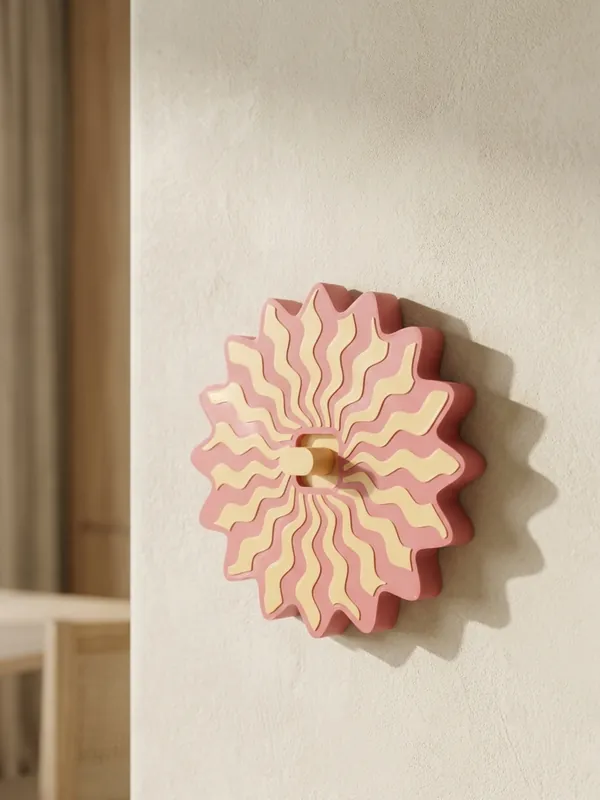
There are five ways to customise a 3D model before you print it: change it in the slicer, edit the mesh, rebuild it in CAD, open a parametric file and change its numbers, or use a generator that builds the piece from your measurements. Which one fits depends on what you need to change. Turning or cutting a model is easy anywhere. Changing a size without breaking holes, threads and walls is not, unless the model was built to be changed.
Customised pieces
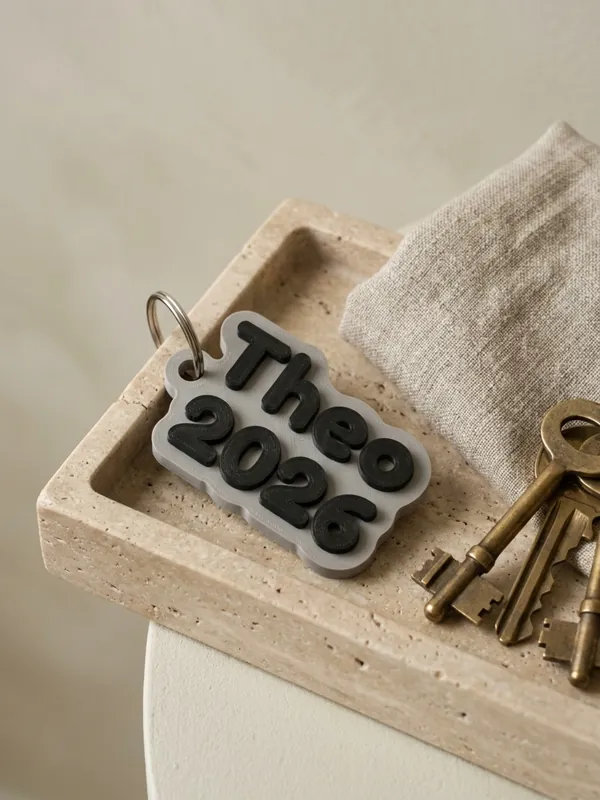
Steps: customise a piece without CAD
Pick the generator for the object
A keychain, a switch plate, a door hanger, a table number, a planter, a ring and more, in Morcano Studio.
Type your measurements
For example the switch face (40 to 140 mm), the glass rim, the lip balm stick or the ring size. The piece is built around them.
Add text, a pattern or a logo
Names in a choice of fonts, a pattern from the library or your own SVG, raised or inlaid in a second colour.
Read the check
If a wall or a letter would be too thin to print, the studio says which setting to change and by how much.
Export and print
STL for any slicer, or 3MF with each colour as its own object. For a list of names, paste the list and get one file.
Five ways to customise a 3D model
| Way | Good for | Limits | Skill |
|---|---|---|---|
| Slicer (Bambu Studio, OrcaSlicer, PrusaSlicer) | Scaling, cutting, rotating, a simple line of text | Scaling changes every dimension at once | Low |
| Mesh editor (Blender) | Free-form shapes, sculpting, combining models | No real measurements; easy to leave holes in the mesh | High |
| CAD (Tinkercad, Fusion, FreeCAD, Onshape) | Exact sizes, new parts, fitting things together | Time to learn; you often redraw the model | Medium to high |
| Parametric file (OpenSCAD, customisers on model sites) | Changing the numbers the author made adjustable | Only what the author exposed; quality varies | Low to medium |
| Generator (Morcano Studio) | Personalised products: sizes, names, patterns, colours, batches | Only the products it has generators for | None |
Why scaling is not the same as resizing
Scaling multiplies every dimension. Scale a keychain to 150% and the 4 mm hole for the key ring becomes 6 mm, the 2 mm plate becomes 3 mm and the letters grow with it. Scale a switch plate and the screw holes move away from the screws. Scale a ring and the band gets wider and thicker as well as bigger inside.
Resizing means changing one measurement and keeping the rest. That needs a model that knows what each part is for: a CAD file with its history, a parametric file, or a generator. In Morcano, changing a ring size changes only the fit, not the shape, and a switch plate is rebuilt round the device face you measured.
Adding a name or text that prints well
- Stroke width. Letters thinner than the nozzle (0.4 mm on most printers) print broken or not at all. Bold, rounded fonts survive small sizes best.
- Depth in whole layers. A recess of 0.6 mm is exactly three layers at 0.2 mm, so the second colour fills it cleanly.
- Second colour. In a 3MF the letters can be a separate object; on a printer with automatic filament changes (such as a Bambu Lab AMS) they print in their own colour.
- Many names. Editing one file per name is slow and error-prone. A batch takes a list and makes every piece in the same style.
For batches for events and companies, see Personalised 3D prints in batches.
Which way to choose
- You need a new object nobody has made: learn CAD; Tinkercad is the gentlest start.
- You found a model and only need it turned, cut or slightly smaller: the slicer is enough.
- You need your own sizes, names or a logo on a common product, or many copies with different names: a generator is fastest, and Morcano checks every file before it downloads.
- You plan to sell the prints: check the licence of any model you did not design. With Morcano, the Seller and Studio plans include the commercial licence for the printed pieces; the files themselves are never resold.
Questions
How do I customise an STL file?
An STL is a finished mesh. You can scale, cut and add text to it in a slicer, or edit it in Blender. To change one size without the rest, you need the original CAD or parametric file, or a generator that builds the piece from your numbers.
Can I change the size of a 3D model without distorting it?
Only if the model can be rebuilt: a CAD file, a parametric file or a generator. Plain scaling changes every dimension, including holes and walls.
How do I add a name to a 3D print?
Use the slicer's text tool for a one-off, or a generator such as Morcano's Keychains, Door Hangers or Table Numbers, which also takes a list of names and makes them all in one file.
Do I need CAD to customise a 3D print?
Not for the products a generator covers. Morcano Studio works in the browser with sizes in millimetres, text and patterns, and never asks you to edit geometry.
What is a parametric 3D model?
A model built from numbers, such as width, hole size or text, so changing a number rebuilds the shape correctly instead of stretching it.