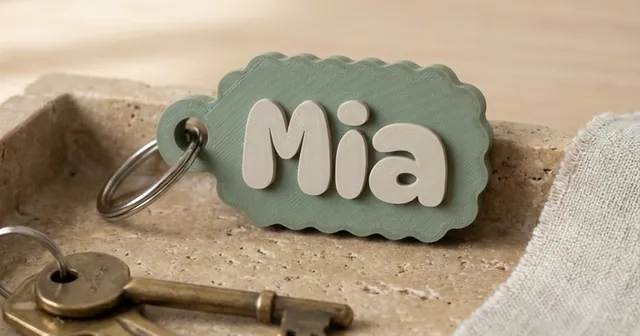
How to put an NFC tag in a 3D print: a pocket underneath, or sealed inside.
Write the tag, then stick it in a pocket or seal it in with one pause in the slicer.
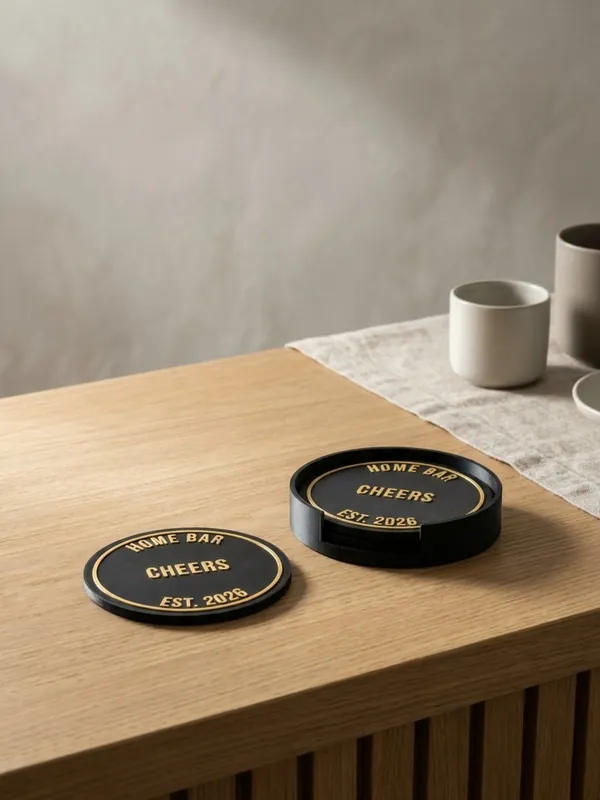
An NFC tag in a coaster or a table sign lets a phone open your link with one tap: a menu, a review page, Wi-Fi details, a social profile. Morcano Studio leaves a pocket for the tag in the piece. There are two ways to fit it: stick it into a shallow pocket underneath after printing, or let the printer pause, drop the tag in and print over it so it is sealed inside.
Pieces that take an NFC tag
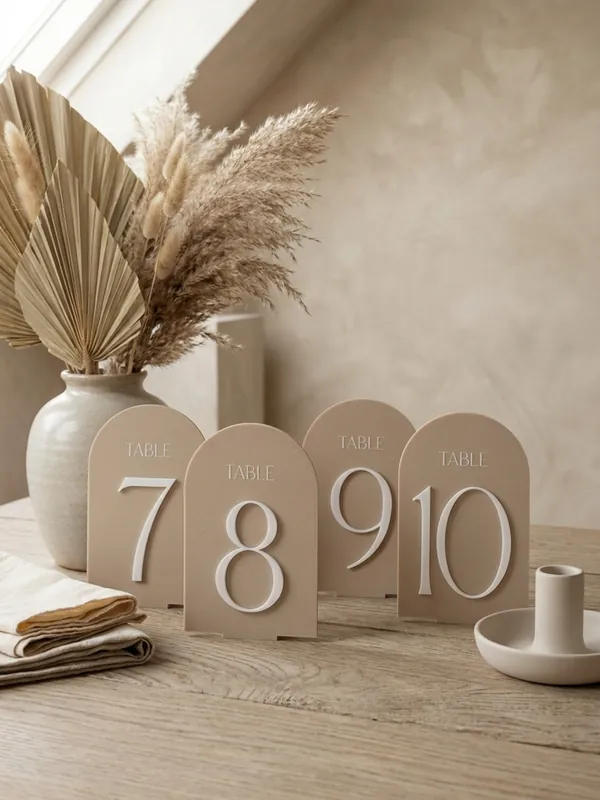
Which tags to buy
| Tag | Size | Good for |
|---|---|---|
| NTAG213 sticker | Round 25 or 30 mm, a thin label | A link of up to about 130 characters: a menu, a profile, a review page |
| NTAG215 sticker | Round 25 or 30 mm | Longer data, such as a contact card |
| PVC coin tag | Round 25 or 30 mm, about 1 mm thick | A sturdier tag that shrugs off water; it takes a deeper pocket |
Keep metal away from the tag: a phone reads it through plastic, but poorly or not at all on a metal table or with a metal backing.
Write the tag first
Install a tag writer
A free app such as NFC Tools or NXP TagWriter, on Android or iPhone.
Write a URL record
Choose a link (URL) record, paste your link and hold the phone over the tag until it confirms.
Test it
Tap the tag with another phone. Most current phones open the link without any app.
Set the pocket in Morcano Studio
Open the generator
Coasters or Table Numbers, and find the NFC tag group.
Pick where it goes
Back - a pocket in the underside for a sticker. Inside - a sealed pocket, printed over after a pause.
Match your tag
Set the tag shape (round or square), its size and its thickness. The pocket is 0.3 mm bigger each side so the tag drops in.
Read the note
For a sealed tag the studio says at which height and layer to pause, for example 1.2 mm (layer 7).
Tip.A sealed tag needs plastic round it: at least 0.6 mm printed before it and 0.8 mm over it. If the piece is too thin, the studio says which setting to change.
Underneath: stick it in after printing
Print as usual
No pause, no slicer change.
Stick the tag in
Peel the backing and press the sticker into the pocket underneath.
The tag stays exposed under the piece. That is fine for a sign on a shelf. Under a coaster it meets spilled water and condensation, so seal it inside, use a PVC coin tag, or cover the pocket with clear tape.
Sealed inside: one pause in the slicer
Slice the file
Open the 3MF in Bambu Studio or OrcaSlicer and slice the plate.
Find the layer
In the Preview, drag the layer slider on the right to the height from the studio's note, for example 1.2 mm.
Add the pause
Right-click the slider handle and choose Add Pause. A pause mark appears on the slider. In PrusaSlicer it is Add pause print.
Print
The printer stops after that layer and moves the head aside.
Drop the tags in
Put one tag into the pocket of each piece on the plate. A sticker can keep its backing on. Keep fingers off the hot nozzle.
Resume
Press Resume on the printer. The next layers close the pocket over the tag.
Tip.A coaster printed face down (the Flush art style) pauses later than one printed face up, because the tag sits near its underside, which prints last. Always use the height from the note for that exact design.
Questions
Will a phone read an NFC tag through plastic?
Yes. The tag sits a few millimetres under the surface, and phones read through that. Metal under the tag blocks it.
Can I change the link after sealing the tag in?
Yes, as long as the tag was not locked: rewrite it through the plastic with the same app. A locked tag can never be changed.
Is an NFC coaster waterproof?
With the tag sealed inside, water does not reach it. A sticker in the pocket underneath is exposed, so seal coaster tags inside or use a PVC coin tag.
Which printers can pause mid-print?
Bambu Lab, Prusa and most printers with a modern slicer: the pause is a command added at a layer in the slicer.